Locations, rooms and boxes
Questi contenuti non sono ancora disponibili nella tua lingua.
Everything sits in a tree: a location (Home, Garage, a storage unit) holds rooms and spots (“room or spot” is Kept’s word for any place), which hold things. A thing can be a box or container that holds other things, as deep as you like. Each location also has Unplaced, for things that don’t have a place yet.
- On a location, room or box, Add here adds a Thing, a Box / container or a Room or spot, or furniture with compartments.
- Lists have a search box, + Filter, saved Views, and a Display button for sort order and grouping. Filters live in the address, so a filtered list can be bookmarked or shared.
- Select (beside the search box, for anyone who can edit things) ticks things in the list of a location, place or box. Then: Move, Pick up (into the tray), Print labels, Add tags… or Remove tags…, Add to incident and Claim pack (owners and admins, where Receipts and warranties is on), or Move to Trash. Move to Trash takes up to 200 at a time and needs a connection. It asks first what happens to what’s inside a box (move it out, or trash it too) and about anything lent out, then one Undo brings them all back.
- Order: places and things read A to Z with numbers in order (Box 2 before Box 10), the same in the app, offline, in exports and for AI apps. Floors keep the order they were made in: the first is the ground floor on the map. On a place, Display → Things: sort by orders its things; its places stay A to Z.
- Your own order: on a place, Manage → Order of the places here → Custom order puts the places inside it in the order you choose, with Move up and Move down on each (keyboard too). A to Z comes back any time, and switching to Custom order again brings your order back. The tree, the map, exports and AI apps follow it. A location’s top level stays A to Z.
- Turn places into boxes… on a place’s Manage lists the places inside it: tick some, or Select all, and they become boxes in one step, each keeping its ID, label and contents. A place with places inside can’t be ticked: a box holds things only. The toast’s Undo turns them all back into places, as they were; it stays in the history for 7 days.
- The assistant and AI apps can do the same: rename a place, change its kind, move it, set
its fields and the order of the places in it, and turn places into boxes (
update_placeandturn_into_boxes, MCP clients). The assistant shows a card to confirm first; Undo works as in the app. - The place tree (beside the page on a computer, All places on a phone) shows boxes under their place with how many things are in each, up to 50 a place, then +N boxes. The arrow beside a place folds what’s under it; Fold all and Open all do every place at once. Kept remembers your folds for your account, on every device. The places above the page you’re on stay open, even after Fold all.
- On a location, Sort them goes through Unplaced one thing at a time with a place picker.
- A box opened from its label shows a photo grid of what’s inside.
- Layouts: a location’s page switches between List, Grid, Graph, Table and Map, each with its icon. Graph draws the location as a graph of its floors, rooms, boxes and things, in 2D or 3D (The graph). Table shows its things as a spreadsheet, on a screen 1024 px wide or more (The spreadsheet view), so a phone shows List · Grid · Graph · Map. Map shows the location in 3D, floor by floor, with its rooms, shelves and boxes (The location map). The list’s Display menu offers the same choice. A place’s own page (not Unplaced) has the switch too, without Table. Kept remembers the layout for each location and each place on that device.
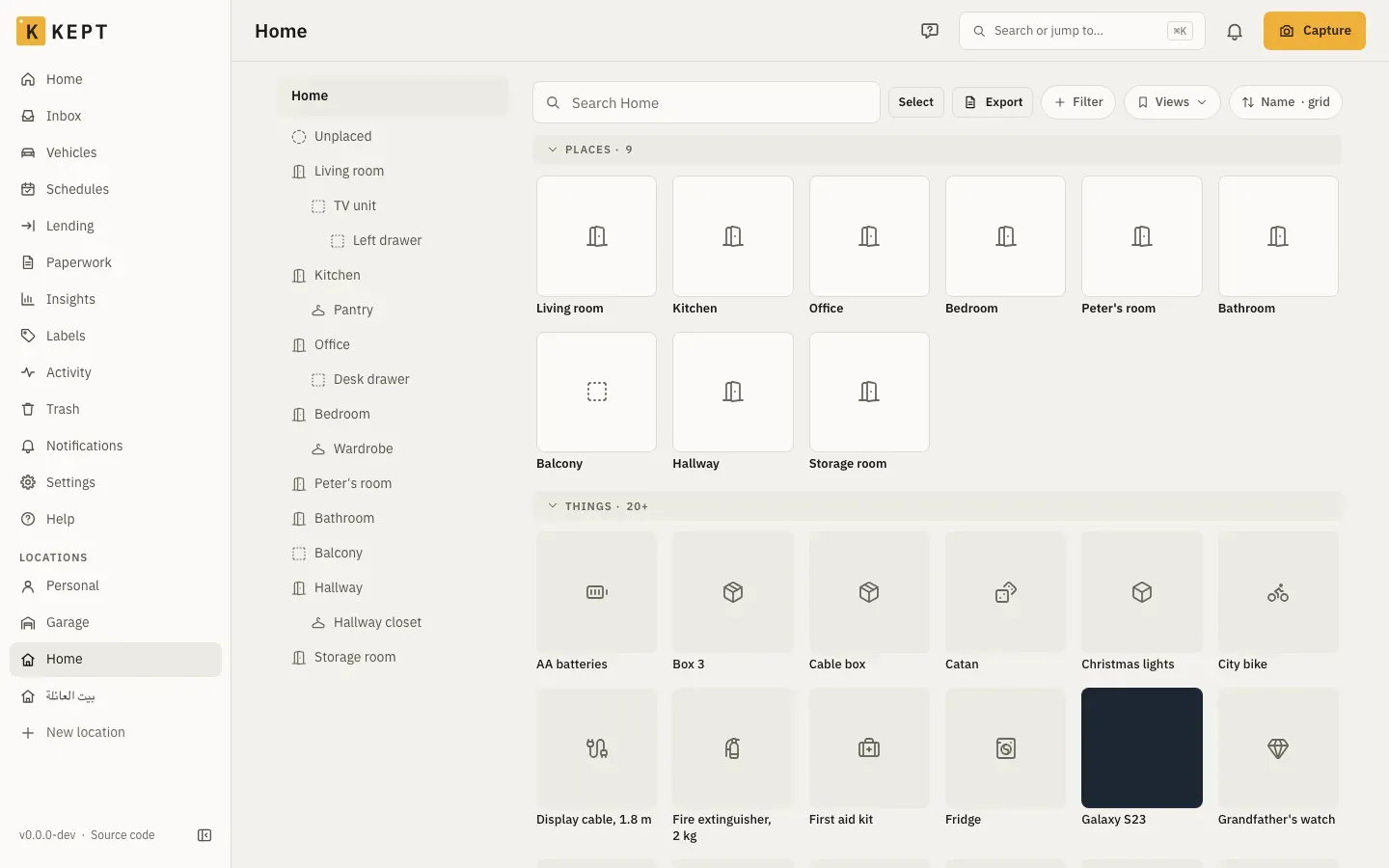
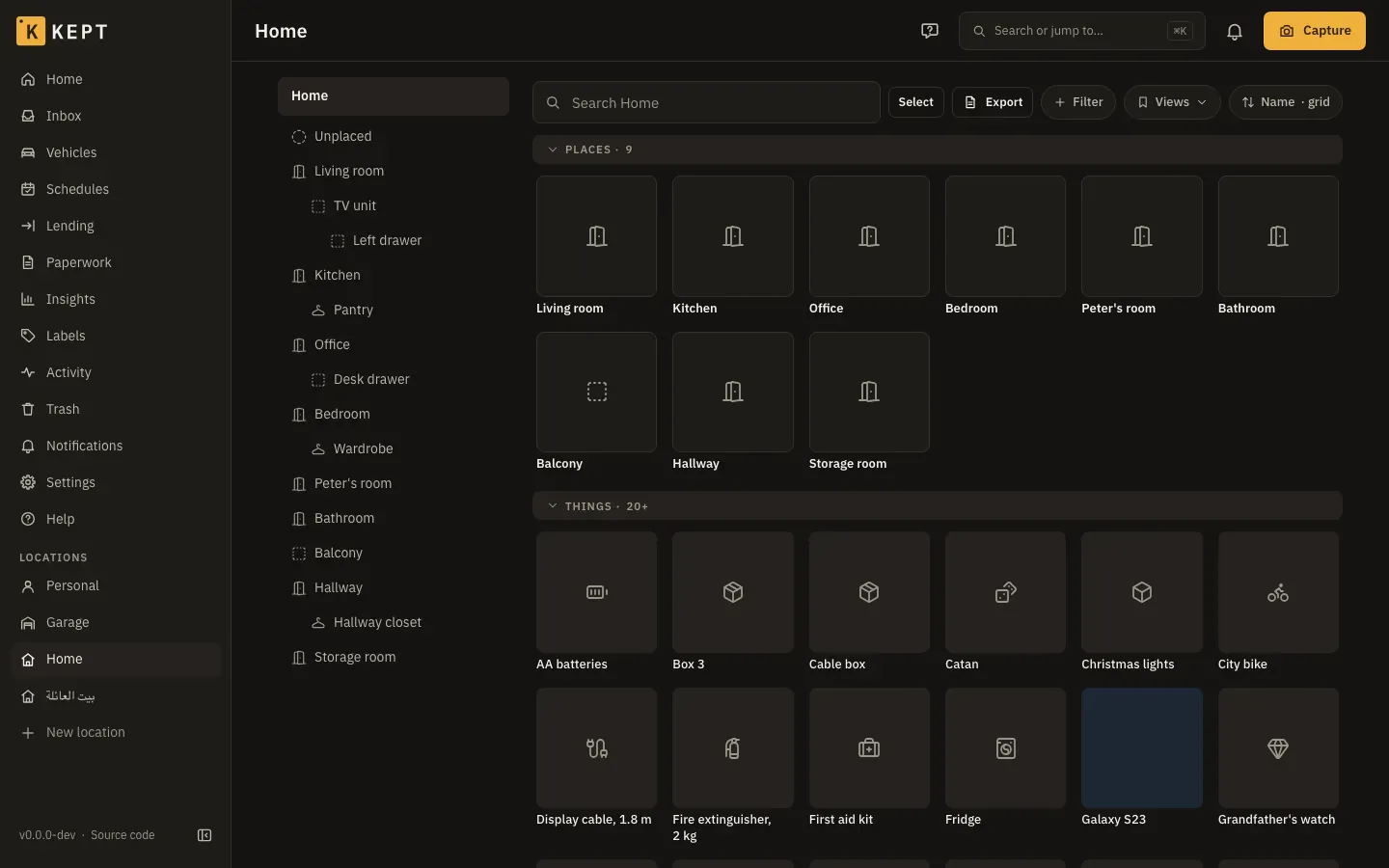
- Grid shows a location’s or room’s places and things as tiles, under the same Places and Things headings as List; each heading folds away. Display → Size picks Small, Medium or Large tiles (3, 2 or 1 a row on a phone), and Kept remembers your size on that device.
- On a computer or tablet, the sidebar marks the location you’re in: on its page, and on its rooms, things, boxes and settings.
Links use IDs, never the path, so moving a thing never breaks a link to it.
Furniture with compartments
Section titled “Furniture with compartments”A cube shelf, a bookcase or a chest of drawers is one place, and each cube, shelf or drawer is a place inside it, with its own name, label and, if you like, its own code.
- Add here → Room or spot → Furniture with compartments… makes the furniture and all its compartments in one step. Pick a template: a cube shelf 1 × 4, 2 × 2, 2 × 4, 4 × 4 or 2 × 8, a bookcase (6 shelves), a chest of drawers (9) or a shelving unit (4). Change the number of shelves or drawers before you add it. The furniture’s kind is Furniture; its compartments are Cube, Shelf or Drawer.
- How it stands: a cube shelf that isn’t square can stand Upright or lie On its side. A 2 × 4 upright is 4 rows of 2; on its side, 2 rows of 4. The compartments are built as it stands.
- Counting: from the top left, row by row, as you see it in front of you. A 4 × 4 is Cube 1
to Cube 16; a 2 × 4 on its side has 1 to 4 on the top row and 5 to 8 below. The sheet shows the
numbers before you add it. Compartment names take
{n}for the number,{row}and{col}for where it sits. - Codes: Its own code gives the furniture a code (
KX01), and Compartment codes a pattern for the compartments, such as{parent}-F{col:02}{row:02}:{parent}is the furniture’s code,{col:02}the column with two digits. A 4 × 4 then getsKX01-F0101toKX01-F0404. Each code is checked against the location’s format rule (Settings → the location → General → Your own codes) and against the codes already there; if one doesn’t fit, nothing is made and Kept names the code. Scanning or searching a code finds its compartment. - Undo: the toast’s Undo puts the furniture and its compartments in the Trash and frees their codes, as long as nothing was put in them or changed since.
- Labels: on the new furniture, Label everything here prints a label for it and for every compartment, in counting order.
- Your own templates: Settings → Account → Templates → Furniture has the account’s own place templates: cubes across and up (upright), shelves or drawers, the kinds, the names and the code pattern, shared with the locations you choose. Owners and admins make them; anyone who can add places uses them.
- AI apps can do the same:
create_placetakes atemplate(MCP clients).
Related
Section titled “Related”- Everyday use for the wider picture.
- Tags for what a thing is besides where it is.
- Sharing a location for letting people into one.