The location map
Questi contenuti non sono ancora disponibili nella tua lingua.
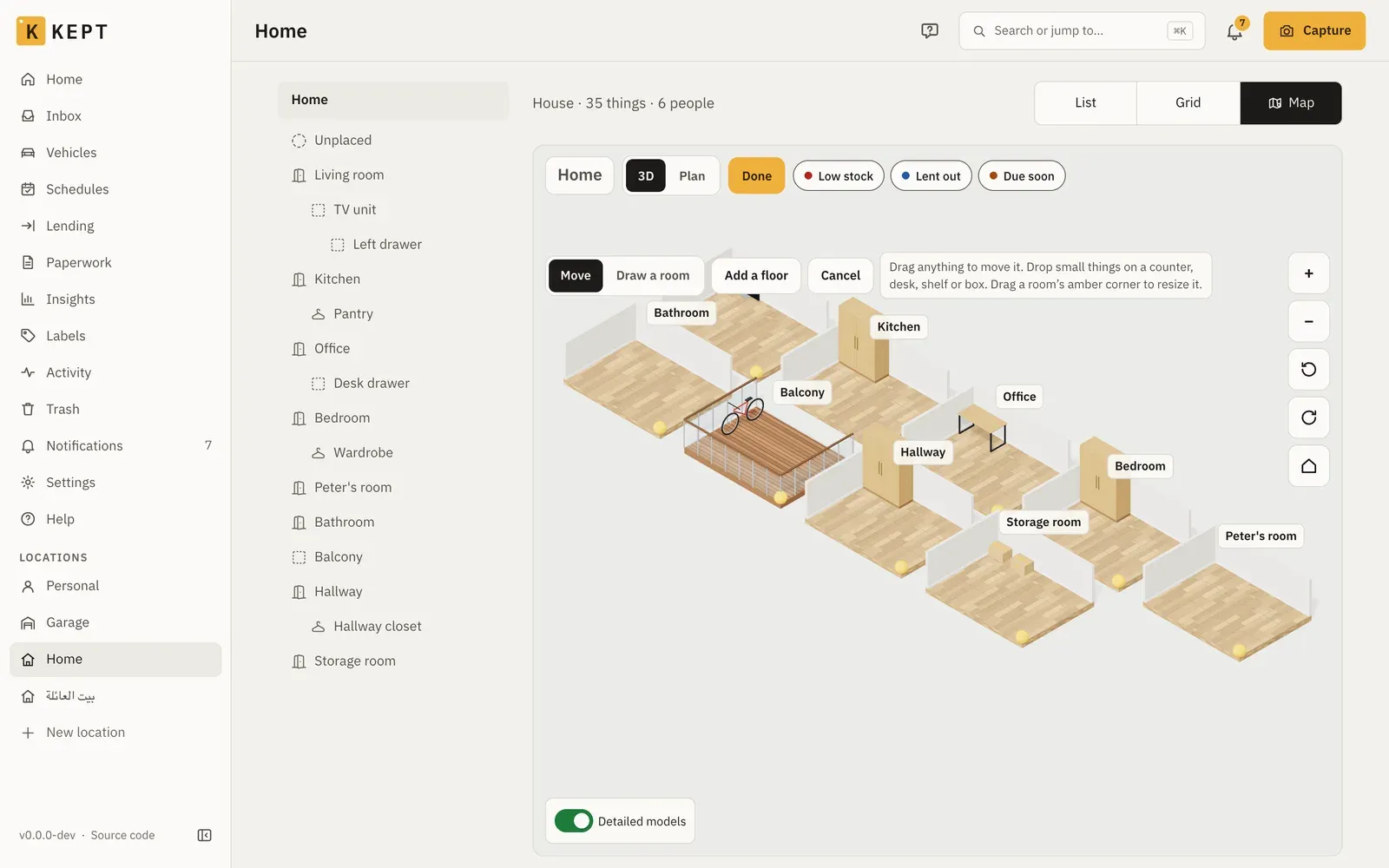
A location’s page has three layouts: List, Grid and Map. The map draws the location in 3D: each floor, its rooms, and the shelves, cupboards and boxes in them. Tap anything to see what it is, where it is and what’s inside. List stays the default; Kept remembers your choice for each location on each device. In Map, the map leads and fills the screen; the location’s buttons (Print inventory, Print labels and the rest), Add here and Unplaced follow it.
To see it before installing anything, try the map with a sample home in your browser.
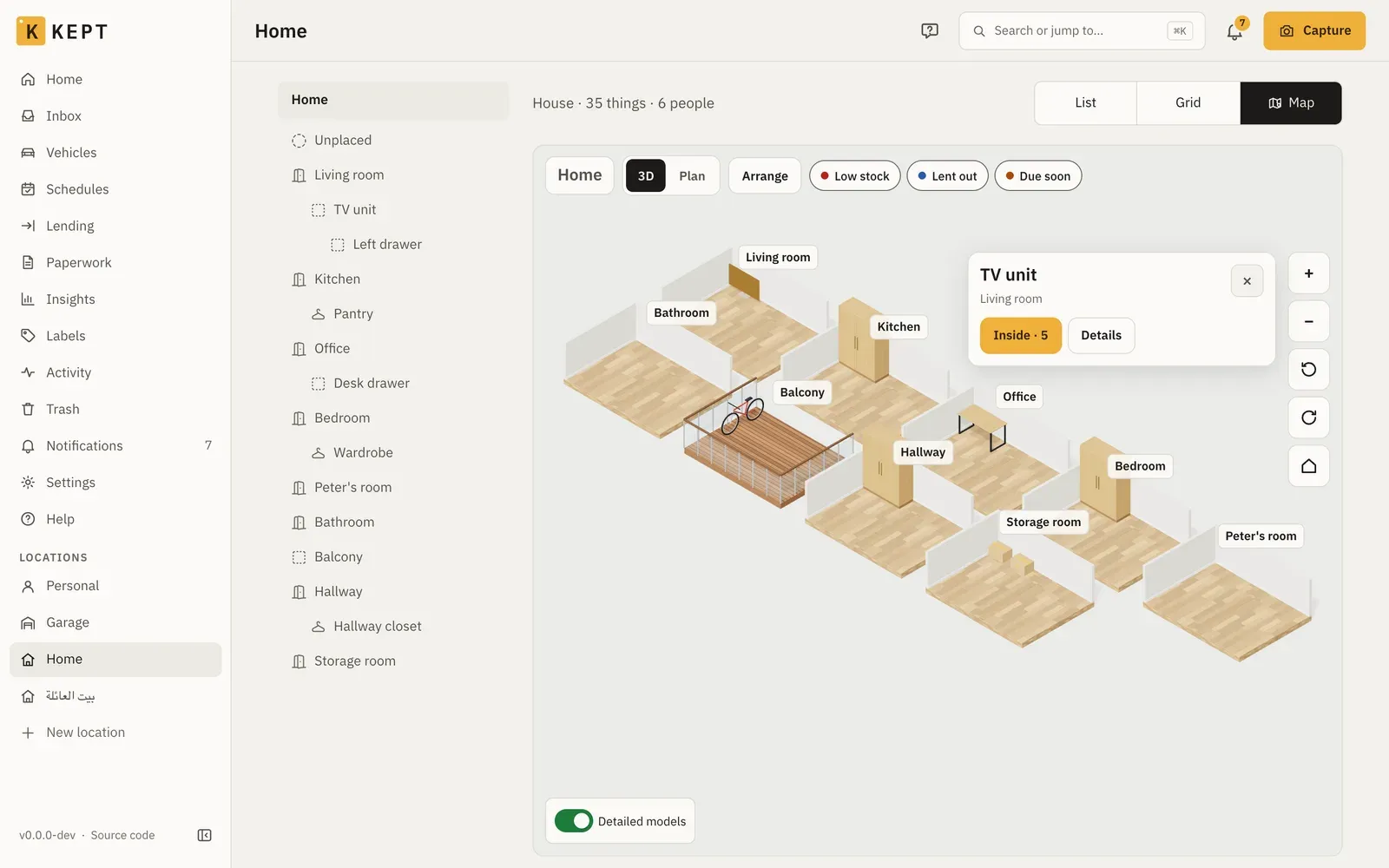
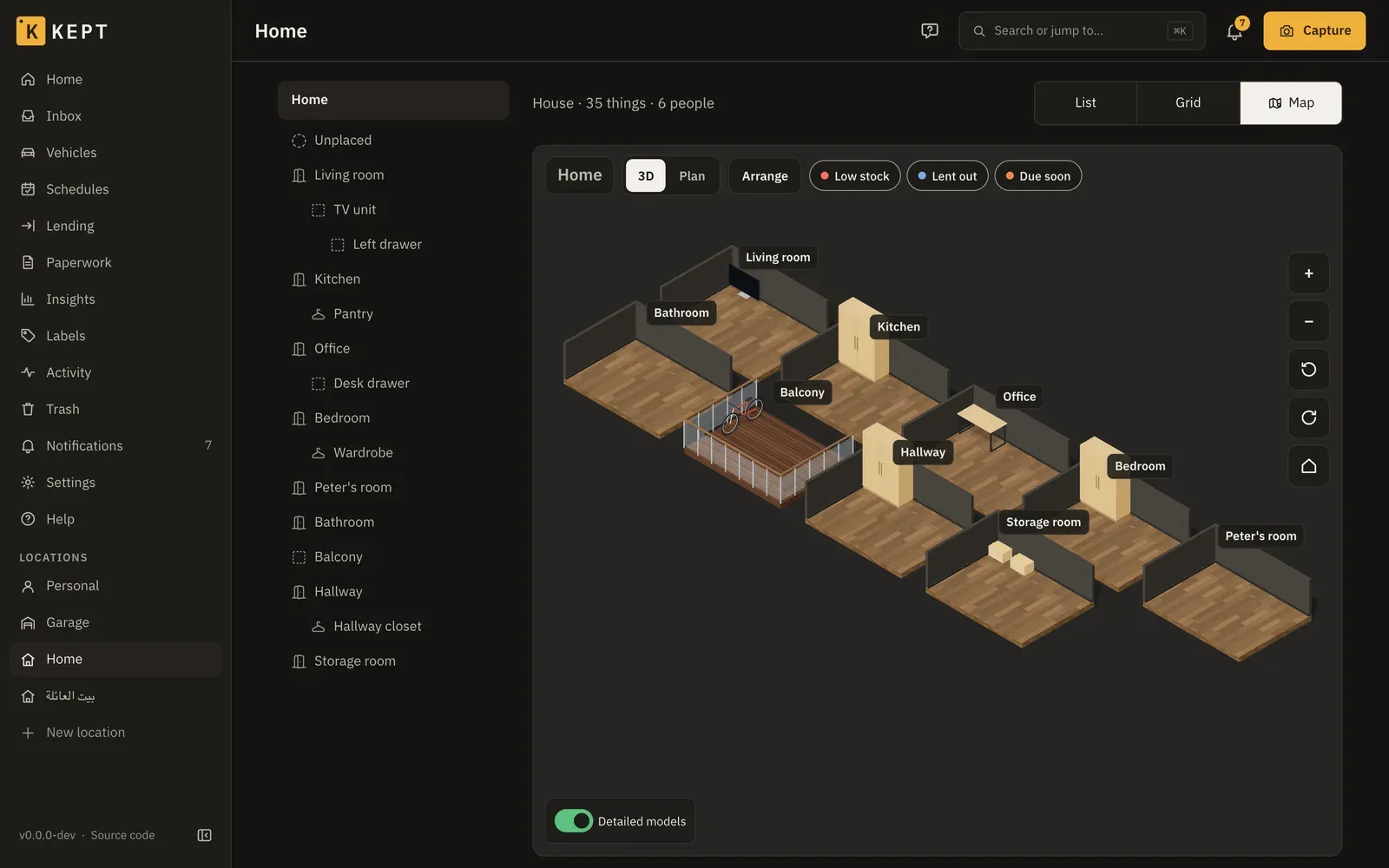
The map needs a connection: it isn’t part of the phone’s offline copy. It loads only when you open it, so the rest of Kept stays as quick as before.
What’s on the map
Section titled “What’s on the map”| On the map | Where it comes from |
|---|---|
| Floors | Places of the kind Floor at the top of the location. With none, the location is one level. |
| Rooms | Every place directly on a floor (or at the top, when there are no floors), whatever its kind. |
| Shelves, cupboards, areas | The places directly in a room. |
| Boxes and other containers | The containers directly in a room. |
| Anything else | A thing you put on the map yourself, such as the TV or the car. |
Names never overlap or get cut off: when two would touch, the room’s name stays and what’s in a shelf or box shows once you zoom in far enough. The thing you selected always keeps its name.
Everything else is counted: a shelf says how many things are on it, and its card lists them. Nobody has to arrange anything first. Rooms nobody arranged are laid out side by side in the order of the places list, and what stands in them in rows. A room called “Garden”, “Balcony” or “Terrace” is drawn as one.
Pins show what needs attention: Low stock (Consumables), Lent out (Lending) and Due soon (schedules, warranties and documents). A pin sits on the shelf or box that holds the thing. The chips at the top turn each kind on or off.
Moving around
Section titled “Moving around”| With a mouse | On a phone | |
|---|---|---|
| Pan | Drag | Drag with one finger |
| Zoom | Scroll, or + and − | Pinch, or + and − |
| Turn | The turn buttons | Turn with two fingers, or the turn button |
| Open a room | Double-click it, or Open on its card | Double-tap it, or Open |
| Back | The location’s name or the floor at the top, or the house button | The same |
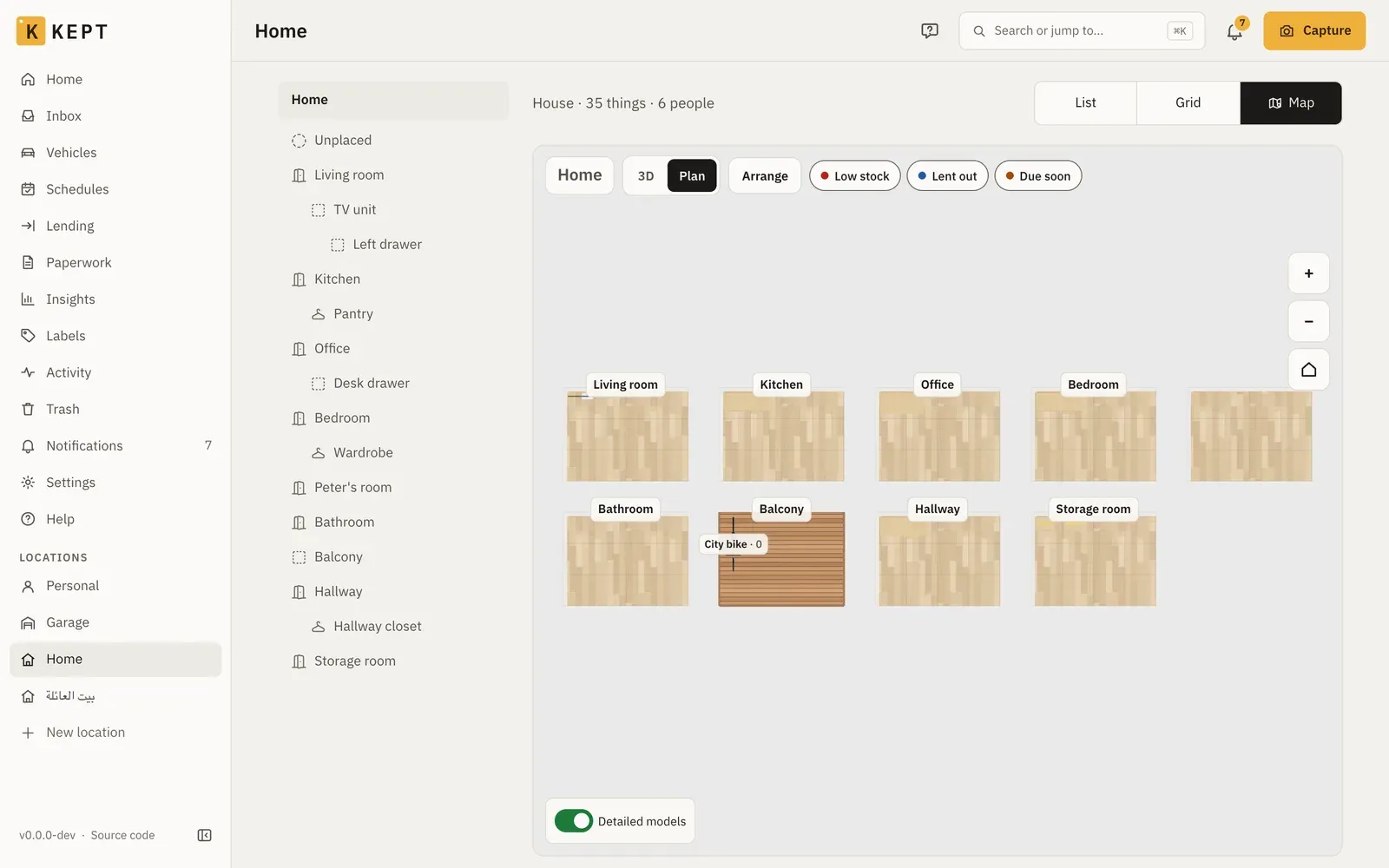
The floor buttons work like a lift: R, 1, G and so on, each named after its floor, and All stacks every floor. On a phone they sit in one row at the bottom with the zoom and turn buttons, and step aside while a card is open. Plan looks straight down, with names and what’s in each shelf. Stairs on the map take you to the floor above or below.
A room opens facing the front of its screens (a monitor, a TV, a laptop), so you see them, not their backs. Turn it another way and it opens that way next time on this device.
The card
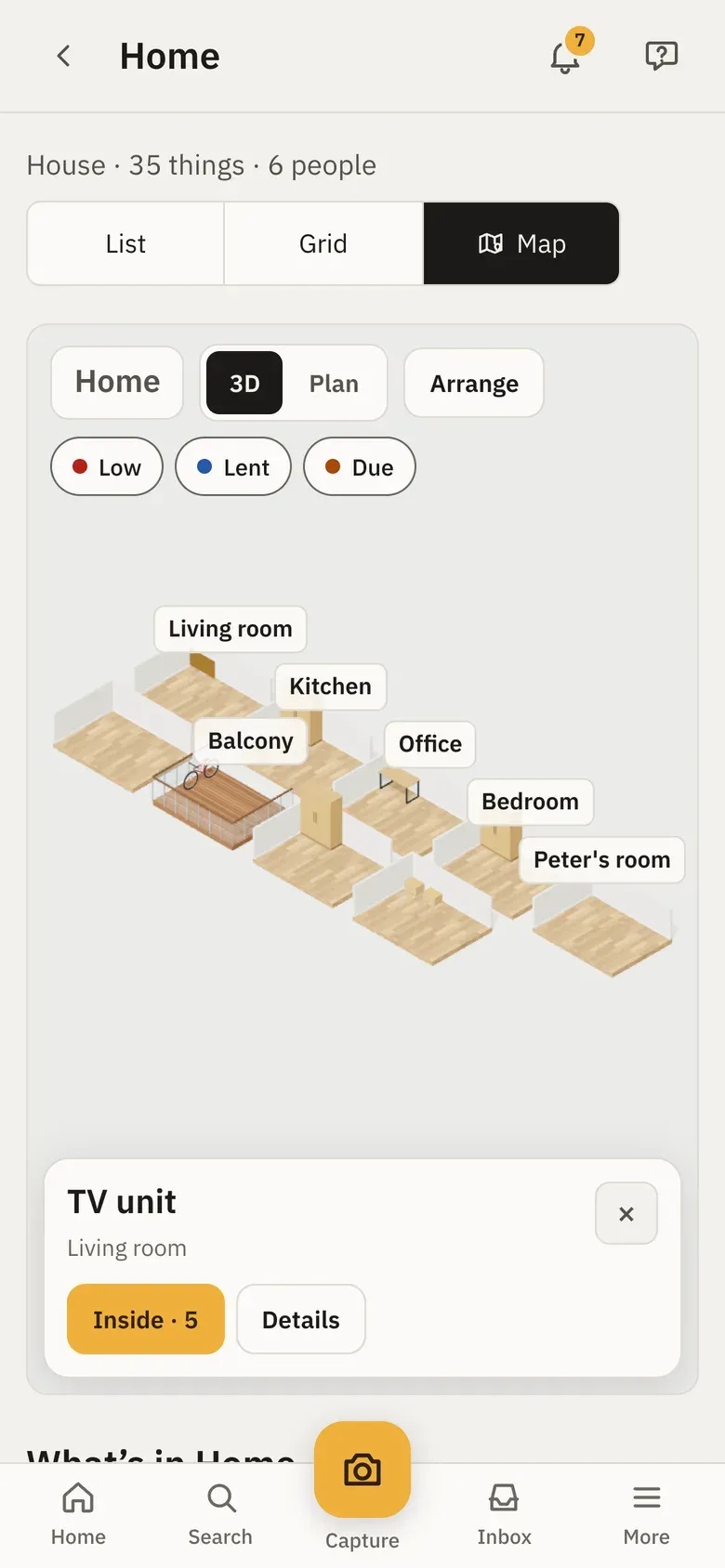
Section titled “The card”Tapping something opens a short card: its name, where it is, its short ID and anything due. Details adds its photo, its label (the same QR code a printed label carries), its facts and Open the thing or Open the place. Inside lists what’s in it; tap one to see it. With a mouse, hovering shows the name and short ID without a click.
What’s in the location
Section titled “What’s in the location”Under the map, What’s in lists every room with what stands and lies in it. Search by name or short ID, pick a floor, or switch to Needs attention for everything low, lent out or due. A tap shows it on the map. The search, the floor and the view are in the address, so you can share or bookmark them.
For screen readers and keyboards, Places on this level lists the floor’s rooms and what stands in them, beside the map.
Arranging
Section titled “Arranging”Owners, admins and members can arrange a location; viewers see it as arranged. Arrange starts:
- Move: drag anything. Small things (a laptop, a lamp, a box) can stand on a counter, desk, shelf or box, and move with it; a webcam clips to a monitor’s top edge. Drag a thing into another room to move it there in Kept too. Small things move a centimetre at a time, other things 5 cm and furniture 10 cm; on a desk or shelf they line up with its edges. On a computer, hold Alt (Option on a Mac) to drag freely.
- Drag a room’s amber corner to resize it. Rooms on a floor can’t overlap.
- Draw a room on empty ground. It becomes a new place on that floor straight away.
- Add a floor adds a place of the kind Floor, with one room in it.
- Select a room to set its kind (room, balcony, terrace, garden) and its floor (wood, tiles, concrete, deck, grass), or to put a thing of that room on the map.
- Select a thing to turn it, change its shape (see below), put it on a desk, shelf or monitor, add things on it, or take it off the map (only what you put there yourself).
Done saves the whole arrangement at once, and the toast offers Undo for ten minutes. Cancel puts the map back. If someone else arranged the same location while you were, Kept says so and shows theirs, rather than overwriting it.
The arrangement travels in a Kept export, so moving to another server keeps the map. A Homebox import starts from the automatic layout.
Put things on the map
Section titled “Put things on the map”Shelves, cupboards, areas and boxes standing directly in a room are on the map already. Anything else, such as the TV, a desk or the car, is on the map once you put it there. Owners, admins and members can do it.
In a room you already have
Section titled “In a room you already have”- Open the location and choose Map.
- Select the room: tap its floor, or tap it in What’s in under the map. To work closer, Open on its card goes into the room.
- Tap Arrange. The room’s card now has Put on the map, listing the room’s things that aren’t on the map yet.
- Type part of the name or the short ID in Find a thing in the room, then tap the thing. It appears in the middle of the room, selected.
- Its card says which shape it got and why: Shape: TV, from its type or from its name. When Kept isn’t sure, the card says a guess and shows Pick a shape.
- Change (or Pick a shape) opens the shapes. Suggested comes first, then every shape in its group (furniture, storage, electronics, kitchen and laundry, tools, plants and outdoor, vehicles, stairs and areas), each with a picture. Find a shape searches the names and their other words in any of Kept’s languages: “fridge”, “Kühlschrank” and “ثلاجة” all find the fridge. While you type, only the matches show, and shapes whose name or word starts with what you typed come first: “ca” finds Car, Camera and Webcam before Tool cart. Words in your language and English match from their start; a word in another language matches once you type all of it. Clear the search to see Suggested and the groups again. On a phone the shapes stay above the keyboard and scroll. Tap a shape to use it.
- Drag the thing where it stands. Small things can stand on a desk, counter, shelf or box. Turn turns it a quarter.
- Tap Done. The toast offers Undo for ten minutes. Cancel before Done throws the whole session away.
Put small things on a desk, a shelf or a monitor
Section titled “Put small things on a desk, a shelf or a monitor”A webcam is a few pixels wide at room zoom, so you don’t have to drag it. In Arrange:
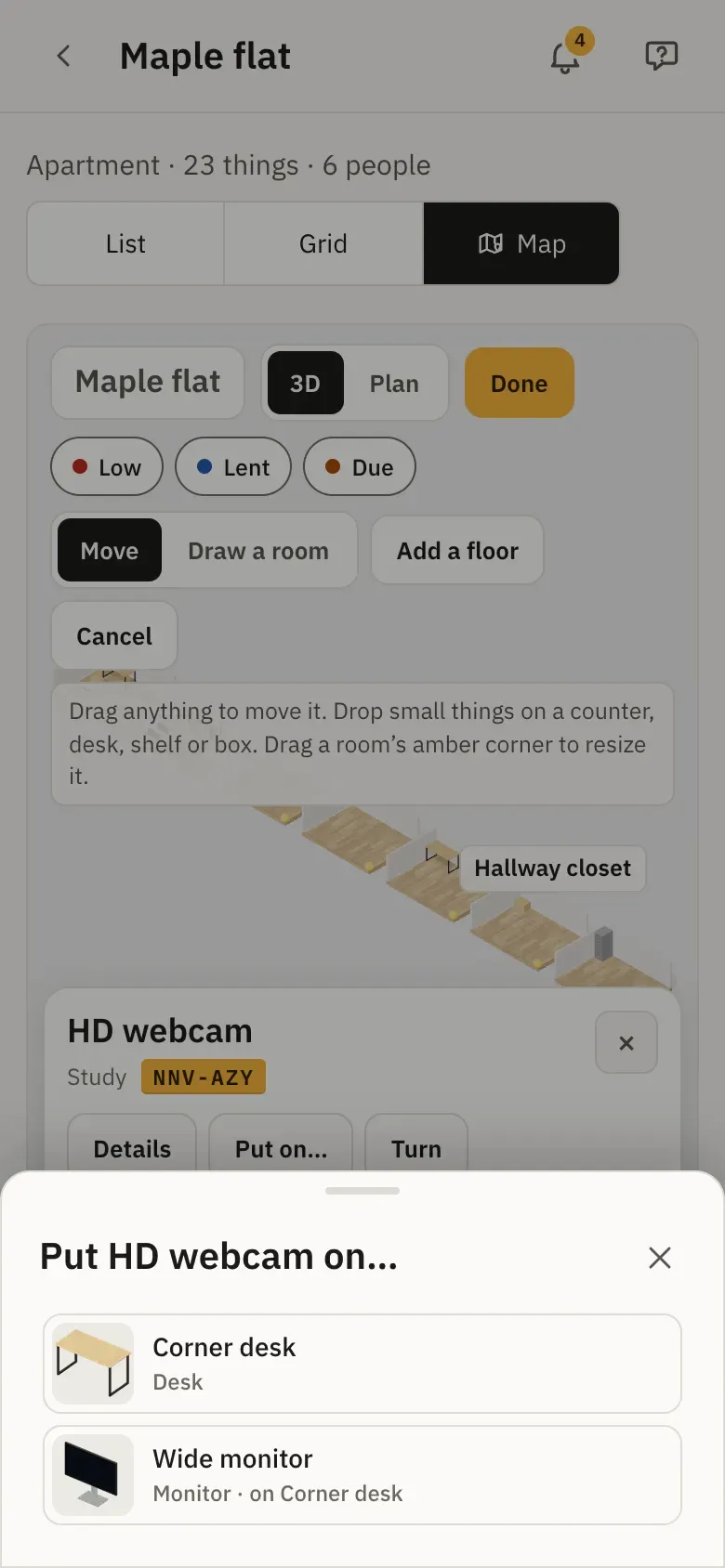
- Select the small thing, such as the webcam, and tap Put on…. It lists what in the same room can carry it, each with its shape’s picture: “Desk”, “Monitor”, “Shelf 2”.
- Tap one. The thing snaps onto it, in the middle or beside what is there already.
- To go the other way, select the desk or the monitor and tap Add on it. Pick one or several of the room’s small things that aren’t on anything yet, then Put 3 on it. They go side by side, not on top of each other. The room’s small things that aren’t on the map yet are there too, under Not on the map yet, with the shape each would get: picking one puts it on the map and on the desk in one go.
- Take off, in Put on…, puts the thing back on the room’s floor next to its holder.
What can carry what:
- On top: a desk, table, counter, shelf, TV stand or box carries small things.
- On the top edge: a monitor, a TV or a laptop’s screen carries a webcam, a smart speaker or a light: small things up to 12 cm deep and 20 cm high, no wider than the screen.
- On an arm: a monitor arm stands on a desk and holds one monitor, a dual monitor arm two, side by side and raised off the desk. Add on it on an arm lists the room’s monitors and says when the arm is full. A webcam on a monitor on an arm still works. An arm clamps at the desk’s back edge, the side away from the chair: in the middle, or at a back corner when the middle is taken. Its monitors hang over the desk in front of it, and dragging it slides it along the back.
Moving a holder moves what is on it: move the desk and its arm, the monitors and their webcam go with it. Turn the desk and they turn with it. This is the map only: putting a webcam on a monitor changes where it stands on the map, not its place in Kept. Done saves it with the rest of the session, and Undo takes it back. Viewers see it, and can’t change it.
How Kept picks the shape
Section titled “How Kept picks the shape”- From the type first. A thing whose type is TV, car, bicycle, motorbike or box gets that shape straight away. A type that only narrows it down (electronics, an appliance, a tool) puts the likely shapes first in Suggested and leaves the choice to you. A type you made yourself counts by its name: a type called “Television” works like the TV type.
- Then the name, word by word, in English, Arabic, French, German and Italian, with common other words (“couch”, “telly”, “Kühlschrank”, “تلفزيون”). A name that points at one shape (“Samsung TV”) gets it by itself; one that could be two (“Screen”: a TV or a monitor) is a guess.
- Everyday electronics have their own shapes, at their real sizes: webcam, camera, desk speaker, portable speaker, tall speaker, boombox, smart speaker, soundbar, headphones, headset, earbuds, keyboard, mouse, desktop PC, laptop, monitor, monitor arm, dual monitor arm, router, printer, game console, game controller, phone, tablet, power strip and external drive. A thing named “HD webcam” gets the webcam by itself, “AirPods Pro” the earbuds, “JBL Flip 6” the portable speaker and “Ergotron LX” the monitor arm. Plain “Speaker” could be any size, so Kept suggests every speaker and lets you pick.
- Accessories are a guess. “Phone case”, “TV remote” or “Laptop stand” names what it is for, not what it is, so Kept suggests shapes and lets you pick.
- Nothing fits? Things with no shape of their own, such as a thermostat, a hub or a charger, are suggested the Small device, the size of a gadget. Anything else starts as the Small thing.
- Your choice stays. Kept never changes a shape someone picked, and things already on the map keep theirs.
In a location with no rooms yet
Section titled “In a location with no rooms yet”An office or a storage unit often starts with everything in Unplaced and no rooms, so its map is empty ground.
- Open the location, choose Map and tap Arrange.
- Choose Draw a room and drag on the empty ground. The room is a new place in Kept straight away, named Room 1; rename it from Open the place on its card.
- Tap Done.
- Give the things a place in that room. On the location, Sort them goes through Unplaced one thing at a time with a place picker; or open a thing and use Actions → Move.
- Back on the map, put them on it as above: Arrange, the room, Put on the map.
What Unplaced means here
Section titled “What Unplaced means here”Unplaced holds the things that have no place yet. They are in no room, so they aren’t on the map and Put on the map doesn’t list them. Give a thing a place in a room first; it then shows up in that room’s list.
Detailed models
Section titled “Detailed models”Furniture, plants and outdoor AC units are drawn with free models from Poly Haven (CC0), shrunk for phones: about 150 KB each at most, about 1.5 MB for all of them, and only the floor in view loads its own. Everything else is drawn by Kept itself. Turn off Detailed models under the map and nothing is downloaded at all; Kept remembers that on this device.
If the browser can’t draw 3D (an old phone, or graphics turned off), the map says so and the list under it still has everything.