Everyday use
Ce contenu n’est pas encore disponible dans votre langue.
Kept answers three questions about everything you own: where it is, what paperwork it has, and what it needs next. This page walks through the screens that do that. Which of them you see depends on your role and on what each location tracks (presets and roles). To click through them before installing, try Kept with a sample household in your browser.
Home is what needs you, then where things are. On a phone it is one column in this order; on a computer, locations and recent activity sit on the left, shortcuts and Insights on the right.
- Get started: one line with your progress and the next step. The arrow opens the steps; × hides it for good (Undo in the message; Help → Get-started checklist brings it back). It goes away by itself when every step is done.
- Needs you: six counts, always in the same place: Overdue, Due, Expiring, Lent out, Uncertain and Low stock. A zero is greyed out, not hidden. Borrowed in and Long unseen appear when they have something. On a computer each one names its most urgent item. Tap one to open that list, already filtered. Lent out shows where Lending is on, Low stock where Consumables is on.
- Shortcuts: Capture, Scan a label, Log a reading (when something has a meter) and Add a thing.
- Locations: a card per location with a small map drawing, its things, places and value (where Money is on and you can see amounts), and what is flagged there, such as “2 things need a place” or “1 overdue”. Tap a card to open the location.
- Recent activity: the latest 3 on a phone, 5 on a computer; Added, Moved and Checked narrow them, and All activity opens the full list. Photos to review shows what waits in the Inbox.
- Insights (where Money is on): what you spent on things this year so far, with the years before it, and the value of what you own. Each currency on its own line, never converted. It says which locations it leaves out.
On your first day Home shows the welcome, Create your first home with the steps after it, your Personal location, and the shortcuts that already work.
Locations, rooms and boxes
Section titled “Locations, rooms and boxes”Everything sits in a tree: a location (Home, Garage, a storage unit) holds rooms and spots (“room or spot” is Kept’s word for any place), which hold things. A thing can be a box or container that holds other things, as deep as you like. Each location also has Unplaced, for things that don’t have a place yet.
- On a location, room or box, Add here adds a Thing, a Box / container or a Room or spot.
- Lists have a search box, + Filter, saved Views, and a Display button for sort order and grouping. Filters live in the address, so a filtered list can be bookmarked or shared.
- On a location, Sort them goes through Unplaced one thing at a time with a place picker.
- A box opened from its label shows a photo grid of what’s inside.
- A location’s page switches between List, Grid and Map: the map shows the location in 3D, floor by floor, with its rooms, shelves and boxes (The location map). On a computer, Table shows its things as a spreadsheet (below).
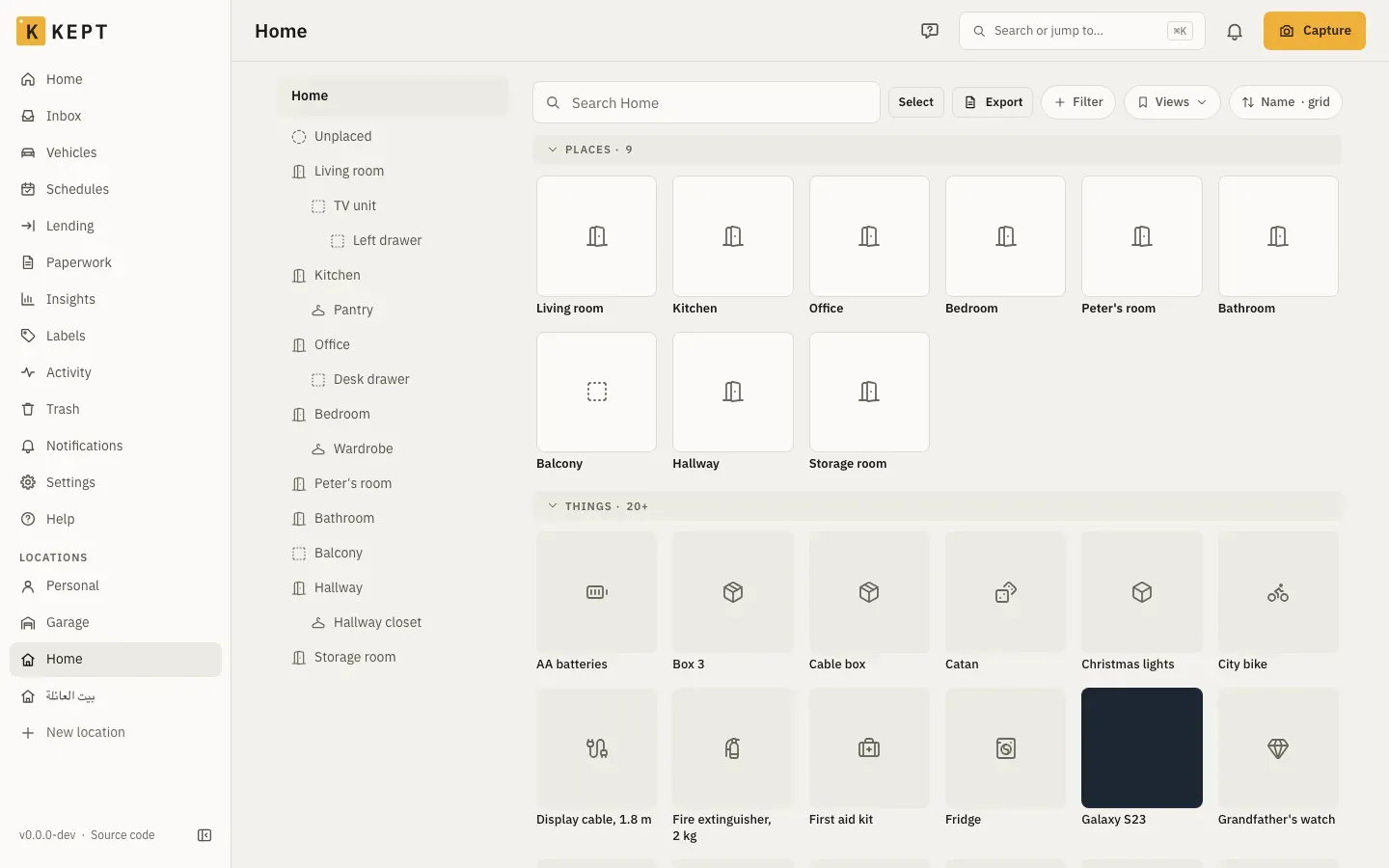
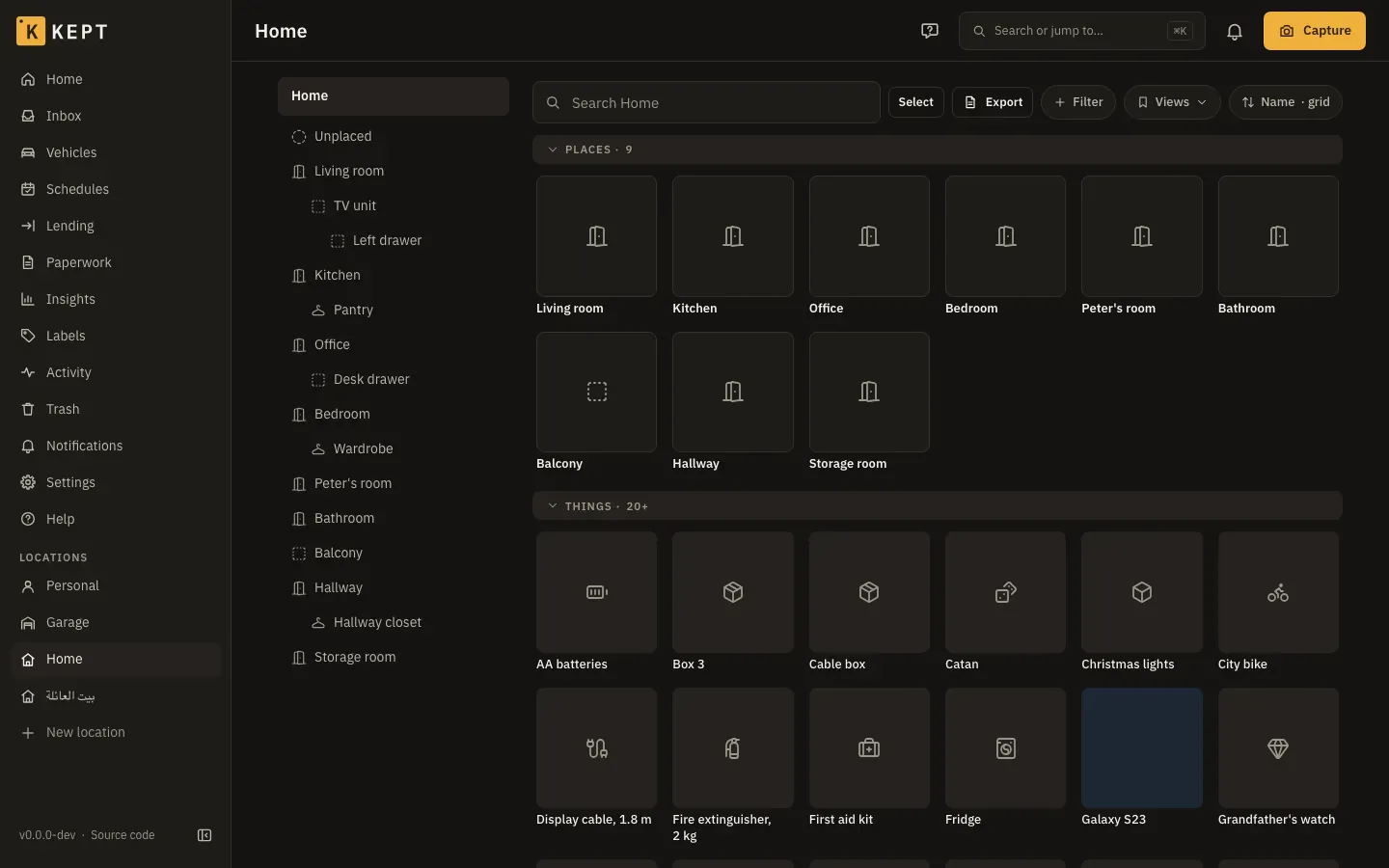
- Grid shows a location’s or room’s places and things as tiles, under the same Places and Things headings as List; each heading folds away. Display → Size picks Small, Medium or Large tiles (3, 2 or 1 a row on a phone), and Kept remembers your size on that device.
- On a computer or tablet, the sidebar marks the location you’re in: on its page, and on its rooms, things, boxes and settings.
Links use IDs, never the path, so moving a thing never breaks a link to it.
The spreadsheet view
Section titled “The spreadsheet view”On a computer (a window 1024 pixels wide or more), a location’s Table shows every thing in it as a row, for tidying up many things at once. Phones keep the lists.
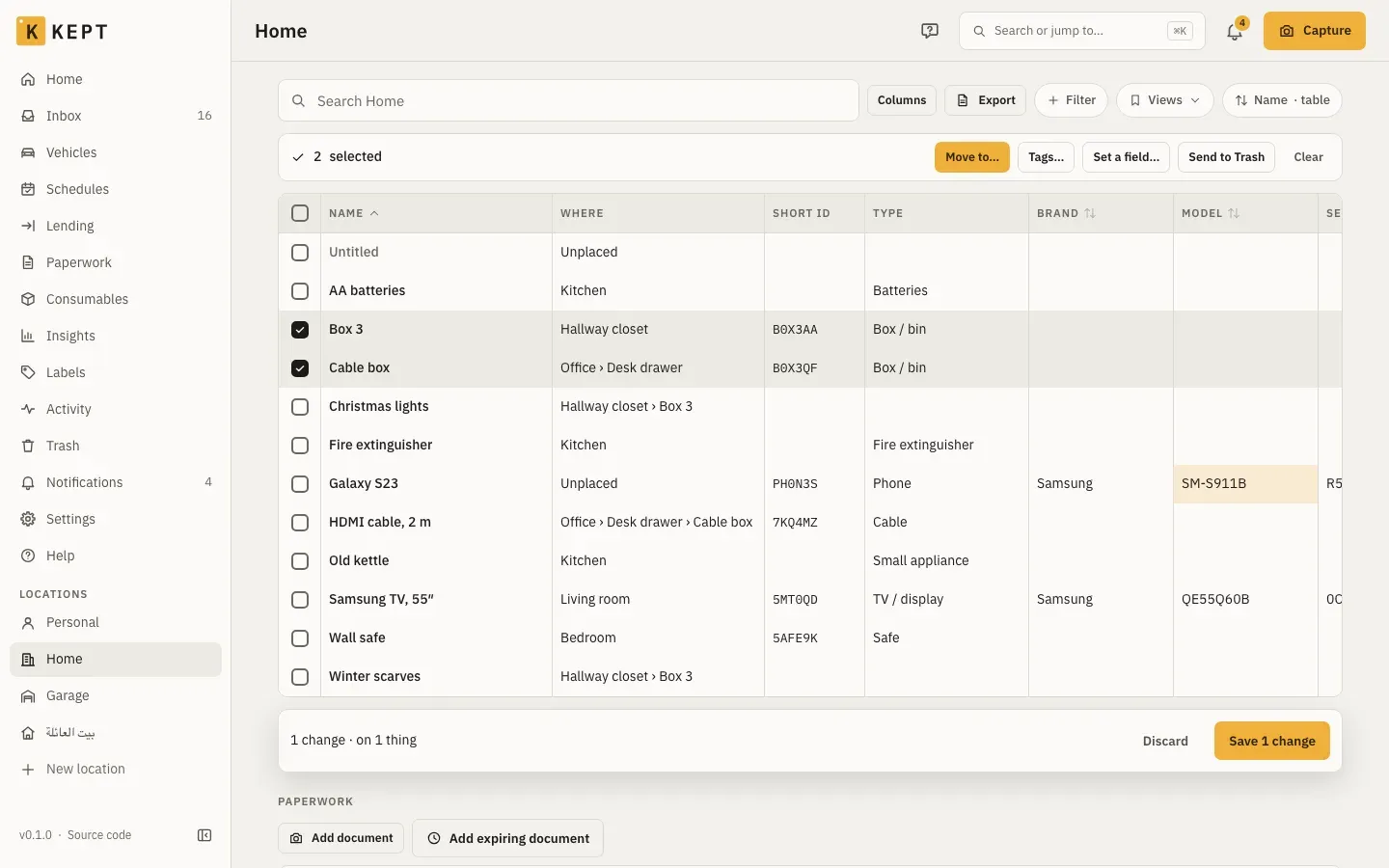
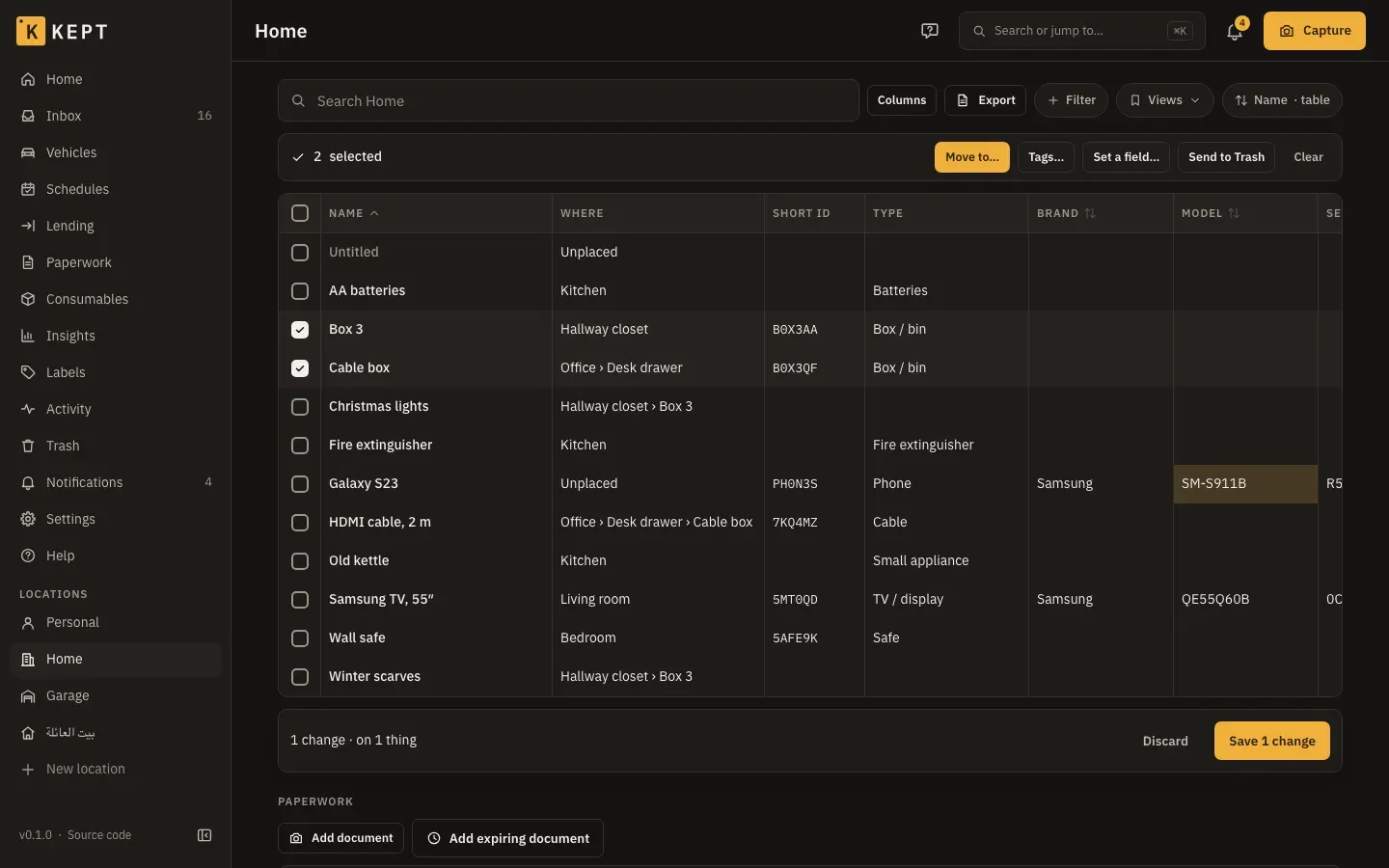
- Columns: name, where, short ID, type, brand, model, serial number, quantity, tags, bought, price, warranty end, condition, colour, barcode, belongs to, expires, notes, last seen and changed. Columns picks which show; Kept remembers the choice for you on that computer. Price shows only where you can see money.
- Search, filters, views, sort and grouping are the location list’s, kept in the address. A column header sorts by that column; press it again to turn the order round.
- Edit in place: double-click a cell, press Enter or F2, or just start typing. Name, where, type, brand, model, serial number, quantity, tags, condition, colour, barcode, belongs to, expires and notes can be edited; the price, purchase and warranty are edited on the thing’s page. Changed cells turn amber and nothing is saved until Save N changes. The same checks as the thing’s form apply (a name is required; a serialized thing’s quantity stays 1).
- Select rows with the box at the start of each row, Space, Shift+↑/↓, Shift-click for a range or ⌘/Ctrl-click for one more. Then Move to… (a room, spot or box in this location), Tags… (add or remove), Set a field… or Send to Trash. Moving, tags and fields wait for Save like any other change; the Trash happens at once.
- Undo: after a save, one Undo takes back every change in it. After Send to Trash, one Undo brings them all back.
- Someone else changed a row since you opened the table: the other rows save, and that one keeps your change with a warning at the start of the row. Open it to Keep mine (save yours over theirs) or Keep theirs.
- Export downloads the rows as a CSV, as on the list.
Keys: arrows move between cells (Home and End to the row’s ends, Page Up and Page Down by ten rows), Tab moves across, Enter edits or saves the cell and moves down, Escape cancels an edit or clears the selection, Delete clears a cell (not the name, quantity or place), ⌘/Ctrl+A selects every row loaded and ⌘/Ctrl+S saves. Viewers see the table but can’t change it.
Things
Section titled “Things”A thing’s page has its photos, its name and ID, its full path, and sections for what it tracks: Details, Paperwork and warranties, Value, Meters, Loans, Claims, Links, Schedules and History. Sections whose module is off in the location don’t show.
-
Edit opens the fields in place. If someone else changed the same field since you opened it, Kept shows both values and asks: Keep mine, Keep theirs or Edit. Fields only one of you changed merge without asking.
-
Actions has Move, Lend, Label, Split, Duplicate, Save as template, Mark seen, Not here, Change lifecycle (sold, given away, thrown out), Re-type, Convert to a room or spot, and Move to Trash.
-
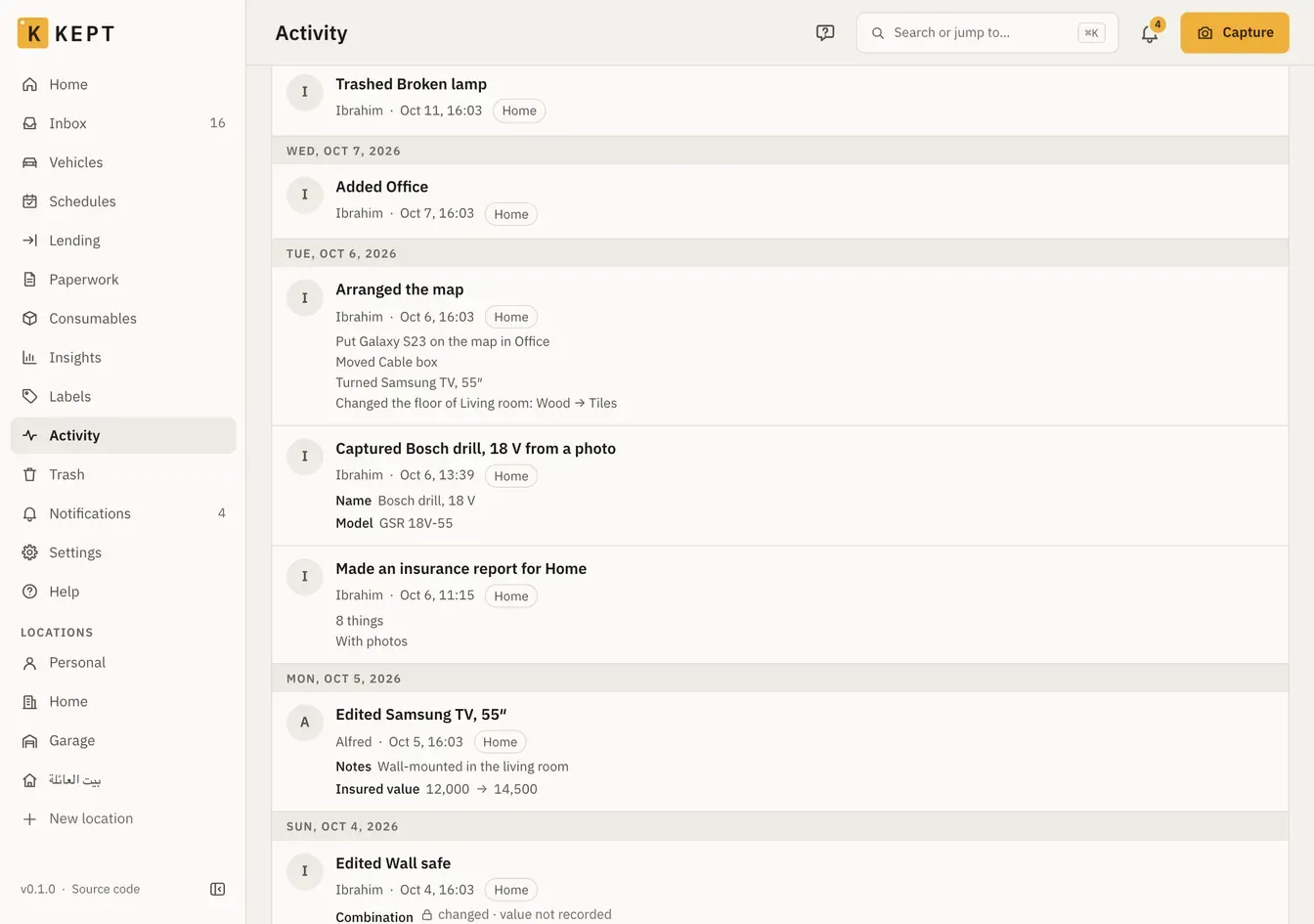
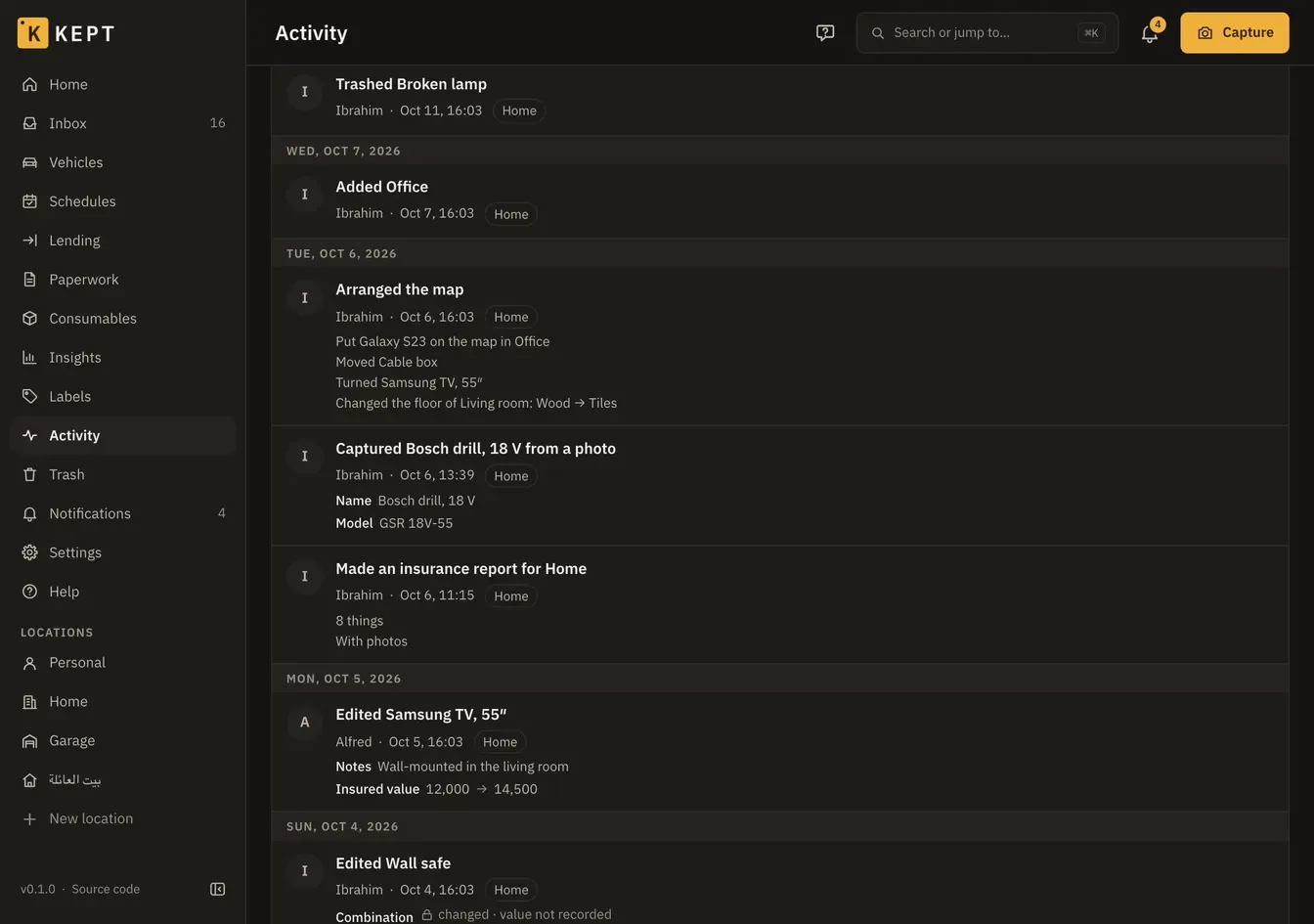
History lists every change with who made it; most changes can be undone from there or from the toast that follows them. Activity in the menu is the same across your locations. Each change is one sentence: “Put Galaxy S23 on the map in Office”, “Captured Bosch drill, 18 V from a photo”, “Made an insurance report for Home”. A field set for the first time shows its value; a map arrangement with more than five changes says how many, and Show lists them.
-
Trash keeps trashed things for 30 days; members and above restore, admins delete for good.
-
Passwords and codes (the Complete preset) are secret fields: hidden until someone allowed to reveals one, which is logged.
Viewers see the same page with no actions except Copy link.
Short IDs and labels
Section titled “Short IDs and labels”When a new thing reaches the server it gets a short ID: six letters and digits, like 7KQ-4MZ,
never reused. Until then it shows ID pending. A label carries the ID as text and in a QR code
that opens the thing. A label keeps its code for good, so a lost one reprints the same.
Printing (Labels in the menu, or Label on a thing): choose what to print (a selection, Label everything unprinted in a location or place, or a Blank sheet), choose the Label stock, pick where to start on a partly used sheet, and print from the browser. Stocks include A4 sheets of 24 and 65 labels, a Letter sheet in the Avery 5160 layout, and 50 × 30, 40 × 30 and 62 × 29 mm rolls for label printers. Afterwards, Printed OK? records the batch; Recent batches reprints one with the same codes. Things whose ID is still pending can’t be printed yet.
Scanning: Scan on Home and Search opens the camera.
| You scan | Kept |
|---|---|
| A Kept label for something you can see | Opens it and marks it seen just now |
| A blank label | Offers New box here or Attach to an existing thing |
| A product barcode | Offers to add it as a new thing; with barcode lookup turned on by the admin, it’s named from Open Food Facts, Open Products Facts or Open Beauty Facts |
| A Homebox label, after a Homebox import | Opens the imported thing |
| Anything else | Says it isn’t a Kept label |
A worn label, or no camera: Type the code. The Capture camera recognises Kept labels too, and offers to open that box or capture into it.
Photos, receipts, manuals and warranties
Section titled “Photos, receipts, manuals and warranties”Photos go on the thing; everything else goes under Paperwork, kept as the original file: Add a file, then say what it is (Receipt, Invoice, Manual, Warranty, Registration, Proof, Document). A file Kept can’t preview yet is kept anyway and marked Preview unavailable.
- Capture’s modes (Thing, Receipt, Label, Reading): with AI connected, a receipt fills in the purchase, a label fills in brand, model and serial, and suggested values wait in the Inbox for you to accept. Prices, dates and serials are never accepted for you.
- Email-in (Location settings → Email-in, owners and admins): Kept checks one folder of a
mailbox you already have, over IMAP, every 10 minutes. Each message’s photos and PDFs, or its
text when it has none, become a draft receipt in the Inbox. Only mail that arrives after you
connect is read, and nothing in the mailbox is changed: no message is marked read, moved or
deleted. Filter receipts into a folder such as
Kept; Only from these senders keeps out noise, but a From address can be forged, so it isn’t a security check. A wrong password, or the person who connected it no longer administering the location, turns it off until it is saved again. - Warranties (Household and Complete) show a coverage bar from purchase to the end date. A claim records a repair or replacement, and a claim that cost nothing shows “Warranty saved you”.
- Paperwork in the menu is the location’s own documents (the lease, the home insurance), and Expiring lists things, documents and warranties by date. Text in PDFs is searchable.
Search
Section titled “Search”Search finds things by name, brand, serial, ID, place, or the words AI added as aliases, and groups results into things, places, people, shops and documents (with a snippet of the receipt text). Filters narrow by location, place, type, tag and state; Saved searches keep a filter set for you or a whole location. On a computer, ⌘K or Ctrl+K opens the same search from anywhere.
On a phone, Search also works offline from the phone’s copy, labelled On this phone · as of last sync. With an embeddings model, results “matched by meaning” join the keyword ones (AI providers).
Moving things
Section titled “Moving things”- Move on a thing picks the new place. Moving into another location you belong to warns who will lose sight of it.
- The tray: Pick up several things (from their menu, or by scanning), then open the destination and Move here, or Scan destination. The tray stays with you offline.
- Box check on a box: tick what’s there (with a count for “found 4 of 6”), add Found something else, and anything left unticked becomes not here.
- Mark seen and Not here keep “last seen” honest, so a thing nobody has seen for a while shows up on Home.
- Moving house: pack into numbered boxes, track them in the van, and scan each one at the other end to unpack it into its room (moving house).
Vehicles and machines
Section titled “Vehicles and machines”Any thing whose type is metered (a car, a generator, a boiler) has Meters: log a reading, log a service, and set schedules by date or by reading. Vehicles (Household and Complete) gathers the vehicles in one place, each with tabs for its overview, readings, services, documents, costs and, on Complete, fuel.
- Log a reading works from Home, the vehicle, and offline. A reading that doesn’t fit between its neighbours is refused with the reason. A dashboard photo joins the vehicle’s proof photos.
- Log a service: date, the reading, the shop, the invoice (AI can fill the line items), the line items with costs, and which schedules it completes; saving restarts their count.
- From stock on a line (where Consumables is on) picks a consumable of the same location: the oil filter on the shelf. Saving takes the line’s quantity (1 when empty) off its count, and Kept refuses more than is left. Editing the line, removing it, deleting the service or undoing any of these puts the count right again; an invoice still being read takes nothing until you save it. The consumable’s History shows “Used Oil filter in a service of Corolla”, with a link. The assistant and MCP clients can do the same when they log a service (“used 4.5 litres of the engine oil”); the assistant’s confirm card shows each From stock line before anything moves.
- Add starter schedules adds the usual ones: oil change, tyre rotation, brake fluid, air filter.
- A one-off (a date, no repeat) is done once you complete it: it leaves Due and Overdue on Home, the agenda and the calendar, and Schedules lists it last as Done with the day. Undo the completion, or delete that service, and it is due again; to do it again later, edit it to repeat or add a new one.
- Read the card reads a registration card in Label mode: VIN, plate and licence expiry.
- History report makes a PDF for a period: odometer history with proof photos, services with their invoices, fuel and documents, and costs only where you can see money.
Reminders and notifications
Section titled “Reminders and notifications”Kept reminds you of schedules due, warranties running out and registration deadlines, documents and things that expire, overdue loans, meters not read lately, low stock, members joining and leaving, and AI spending caps. Home’s Needs you shows what’s due or overdue; the bell opens the notification centre, where Complete, Snooze, Renew and Mark returned act in place.
Settings → Me → Notifications chooses what reaches you and how, a Daily digest, Quiet hours, and a private Calendar feed link for your calendar app. Push on a phone is covered in the phone app.
What reaches you is one table. Rows are the kinds, grouped: due dates (schedules, warranties, registration deadlines, documents, things that expire, meters), lending, stock, people (members joining and leaving) and AI (spending caps, the monthly summary). Columns are your channels: In Kept, Email, Push, and a column for webhooks, ntfy, Telegram or Apprise once you’ve added one (every channel of that kind follows it). Membership and AI notices only go to Kept and email. Turning In Kept off for a kind turns it off everywhere: nothing else is sent for it. On a phone, each kind shows its channels as switches underneath.
- All locations sets what you get everywhere, including locations you add later.
- Pick a location to change it there only. A dot marks what’s set for that location alone; Reset this location to all locations clears those. A kind whose module is off there shows as paused (its reminders wait until the module is back), and where you’re a viewer you only get members joining and leaving. Where you’re a member, Kept starts with only the loans you record: turn on what you want there.
ntfy: add your server (https://ntfy.sh or your own) and a topic that’s hard to guess, plus
an access token if the topic needs one. Telegram: make a bot with @BotFather, send it a
message, then add its token and your chat ID. Apprise (when your server has it): paste one or
more Apprise URLs, like discord://…, to reach Discord, Slack, Matrix, Signal and more. Kept keeps
all of these encrypted and never shows them again; Test sends one now.
Lending: Lend a thing (or part of a quantity) to a member or a contact, with a due date and condition photos. Kept never messages the borrower; Copy a reminder gives you the text to send yourself.
Sharing a location
Section titled “Sharing a location”A location is shared by inviting people to it, each with a role and an optional end date (invites and roles). Owners and admins manage the Members page in Location settings; anyone but the owner can Leave this location. Your Personal location is never shared.
Share links show someone without an account what’s in a box, a place or a search, read-only. Owners and admins make one from a box’s Actions → Share a read-only link, a place’s Manage section, or Share this list on Search (a search filtered to one location, without state or price filters). Choose how long it works: a day, a week, 30 days (the default), 90 days or a year. The link is shown once: copy it then.
- What they see: each thing’s name, photo, type, where it is, quantity, condition and notes, A to Z. Never prices, serial numbers, secret fields, people, loans or documents. Things in the Trash, drafts and things you sold or lost don’t show.
- It stays current: the page shows the box, place or search as it is when it’s opened. A search’s link matches its words and its place, type and tag filters.
- Location settings → Share links lists every link with its state and how often it was opened. Preview as recipient shows the page; Revoke ends it at once. A link also stops when it expires, and when the person who made it no longer runs the location.
To hand someone a list on paper instead, print it (below).
Reports: the inventory, insurance and claims
Section titled “Reports: the inventory, insurance and claims”- Print inventory on a location makes a PDF of its things grouped by place, with photos and short IDs, optionally QR codes, ended things and the Trash. Prices appear only for people who can see money. Anyone who can see the location can make one. Email it to me also mails the PDF when it’s ready, and Send it again mails the whole location every Monday or on the 1st of the month; Settings → Me → Notifications lists these and stops them. A report over 10 MB isn’t attached: print it from Kept instead. Both are locked, with the reason under them, when the server has no mail set up or your account has no email address.
- Insurance report (where you can see money): every thing with its photo, brand, model, serial, purchase date, price, current value and receipts, with totals per place and per currency, as a PDF and a CSV. Also total in adds one converted total when your exchange rates cover every currency.
- Incidents record a burglary, fire, flood or loss: select things on a location’s list, then add them to an incident. A claim pack is a ZIP of the insurance report with every receipt, invoice, photo and serial for the incident, shared with the insurer by a download link that lasts 1 to 7 days, is shown once and can be revoked. Owners and admins make them.
Condition reports (renting)
Section titled “Condition reports (renting)”Condition reports on a location’s page record how a rented home was when you moved in, and when you moved out, for a deposit dispute.
- New report: the location, Move-in or Move-out, and the day of the walk-through. It starts with the location’s rooms (places of the Room kind); add any it missed, or remove one.
- Each room: Good, Fair, Poor or Damaged, a note, and up to 12 photos. Each photo shows when Kept received it, in the location’s time zone, and who added it; photos lose their location data as all photos in Kept do.
- Finish locks the report for good, with who finished it and when. Nothing in it can change after, photos included. A report that isn’t finished can be deleted by anyone who can change the location; a finished one only by owners and admins.
- Compare with puts the move-in beside the move-out, room by room (the same room by its place, or by its name), the earlier one first.
- Make the PDF: the report, or both side by side when you compare, in English or Arabic, with or without photos. A report that isn’t finished says so in the PDF.
Everyone in the location can read the reports and make the PDF, viewers too; members and above record them. A Kept export of the location holds its reports and their photos; imported, a finished report is still finished and locked (import and export).
Insights
Section titled “Insights”Insights (in the sidebar, and under More on a phone) shows, across your locations with Money on, or one location picked with the Location chip:
- Spending on things: confirmed purchases by the year you bought them. A purchase counts its total, or its priced lines when it has no total; one with neither is listed as having no amount. This year is shown on its own, “so far”, never as a bar beside full years.
- Value by place: each thing in use at its latest valuation, per top-level place (a thing in a box in a cupboard counts in the room). Things without a valuation are counted but add nothing: Kept never guesses a value.
- Vehicle costs (where Vehicles is on): fuel, service and fees across your vehicles for the last 12 full months, and each vehicle’s last two years and this year so far. The same figures as a vehicle’s Costs tab.
- Warranty coverage (where Warranties & claims is on): how many things are under warranty, ending soon, past their cover or without one, what ends soon, and the repairs resolved this year and last.
Amounts are per currency and never added across currencies or converted. Where money is hidden from you, Insights shows counts and says which locations’ amounts it leaves out.